

Installation
Get p0 running on your Mac in minutes.Download and install
p0 supports both Apple Silicon (M1/M2/M3/M4) and Intel-based Macs running macOS 12.0 (Monterey) or later.- Download the
.dmginstaller from bepurple.ai - Open the downloaded
.dmgfile - Drag the p0 icon into your Applications folder
- Launch p0 from Applications or Spotlight
On first launch, macOS may show a security prompt since p0 is downloaded from the web. Click Open in the dialog, or go to System Settings > Privacy & Security and click Open Anyway.
First launch
When you open p0 for the first time, you’ll be prompted to sign in with your Purple account.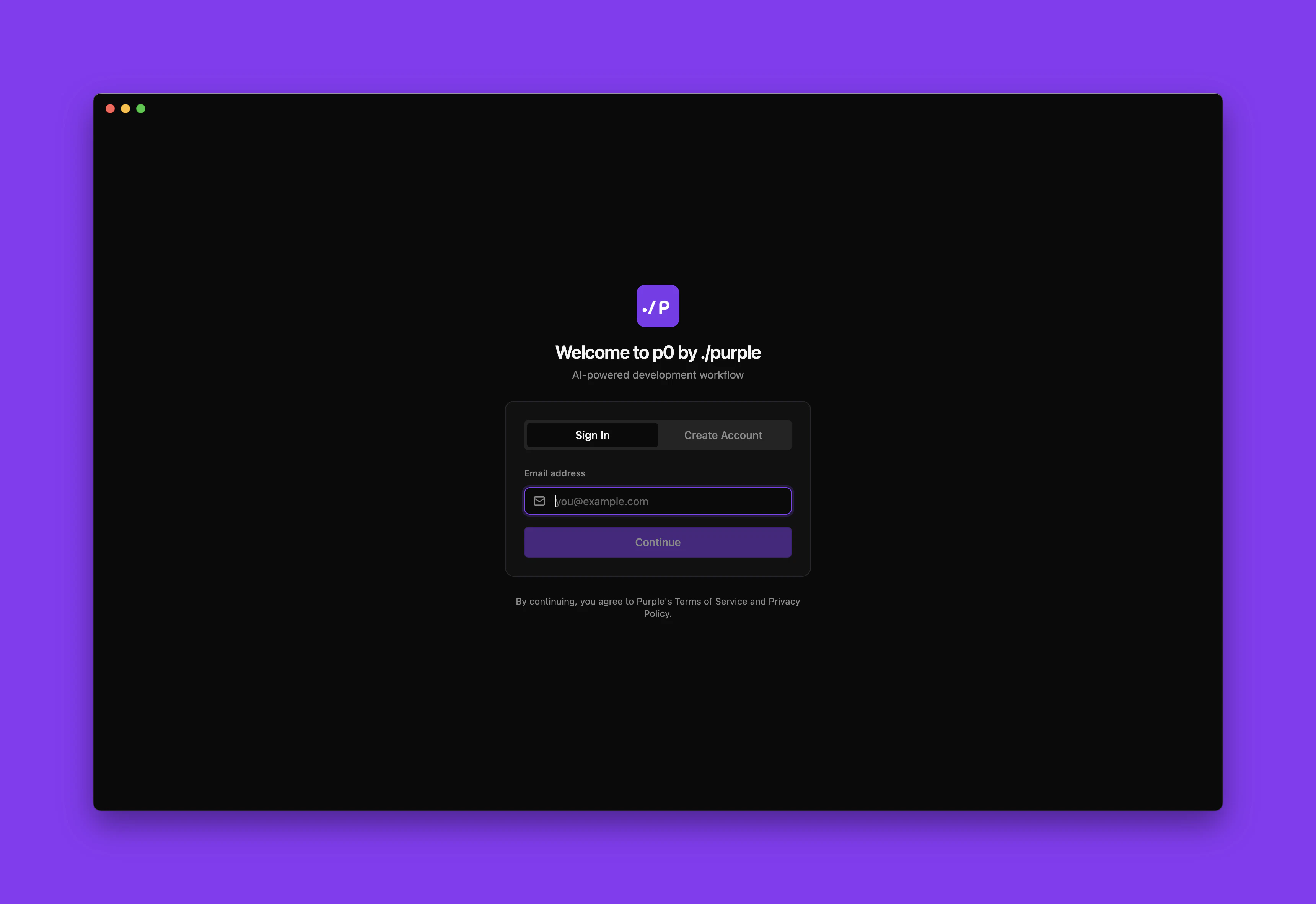
Don’t have a Purple account yet? Sign up at bepurple.ai to get started.
Environment setup
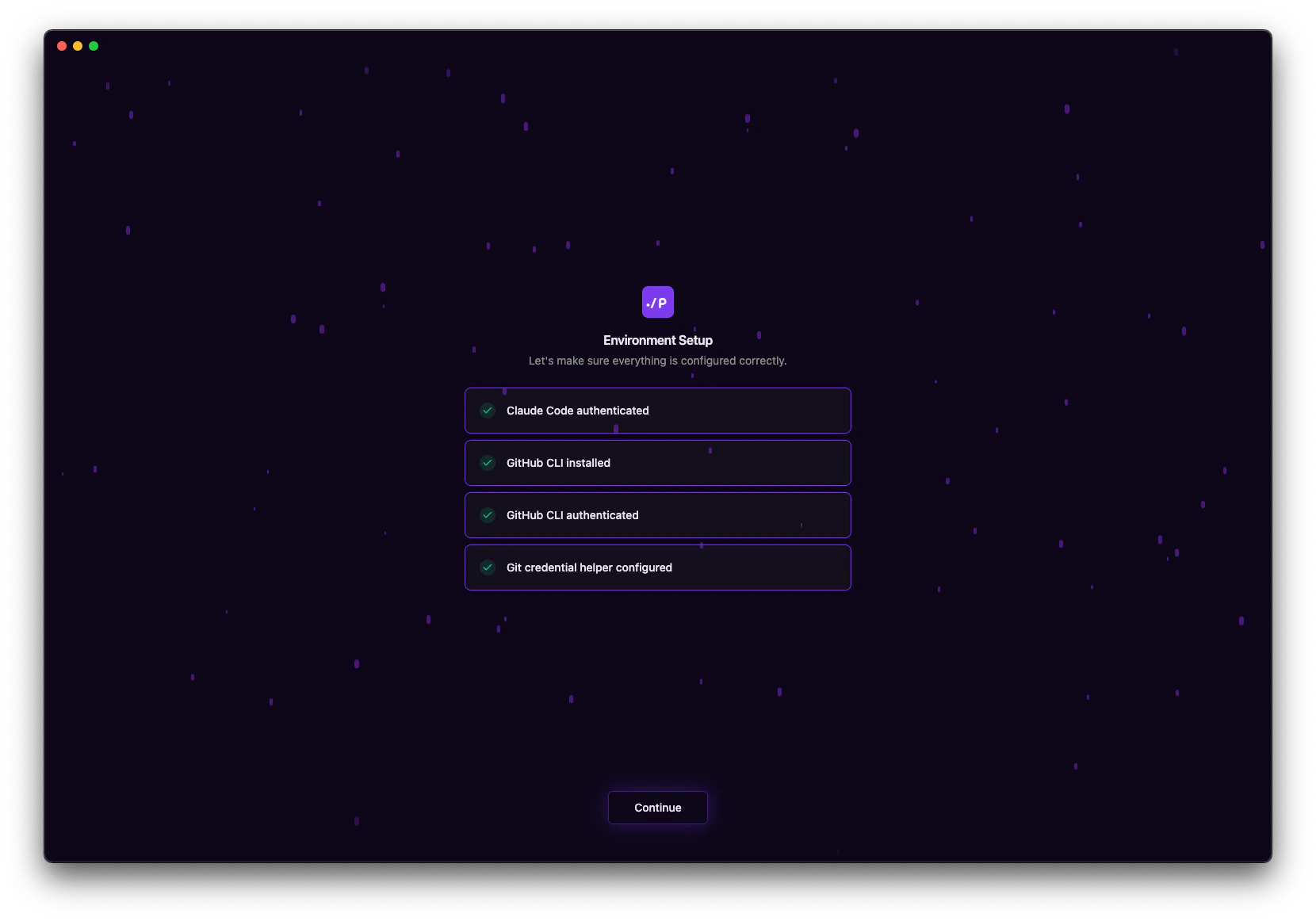
After signing in, p0 walks you through four setup checks to make sure your environment is configured correctly.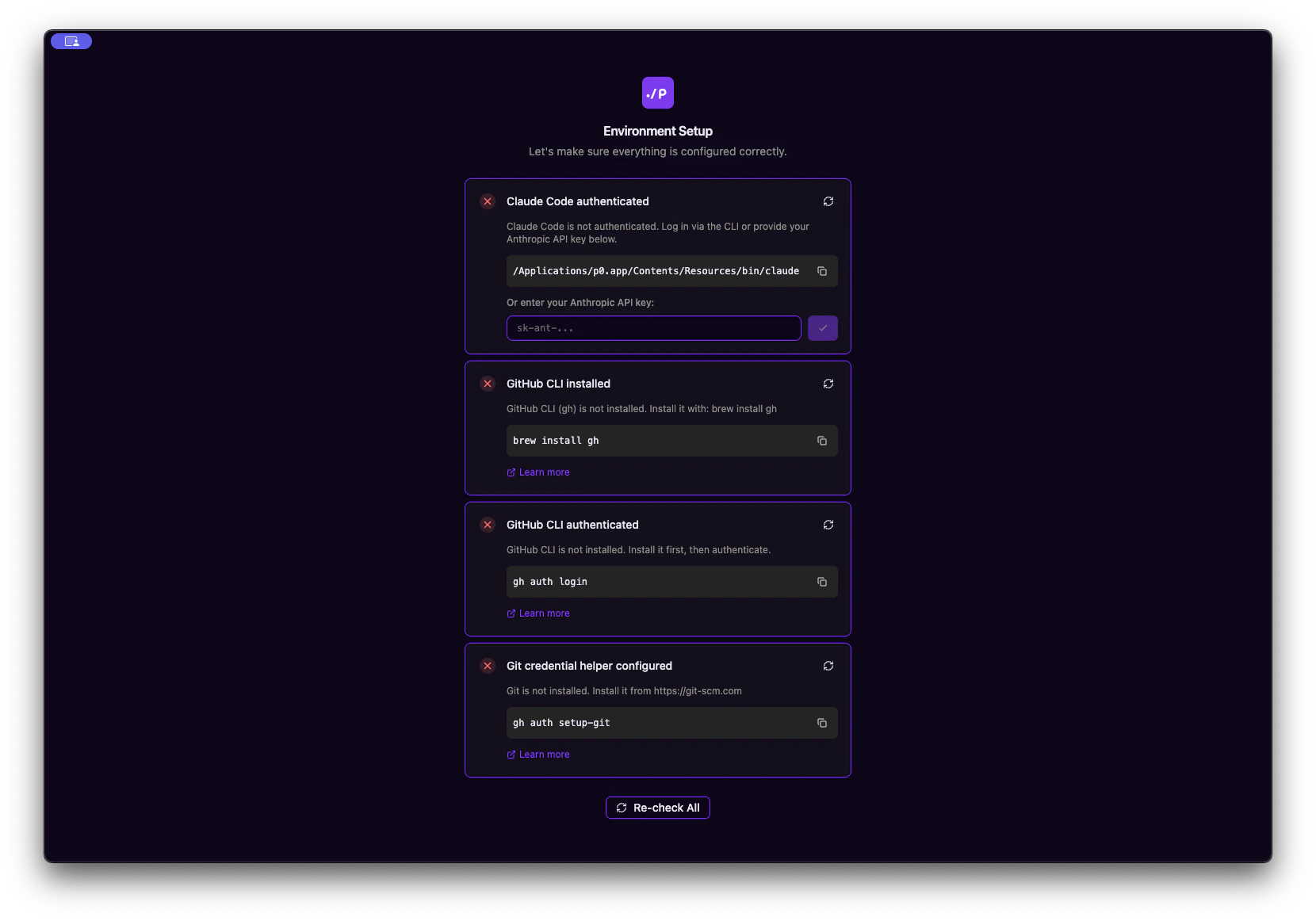
Authenticate Claude Code
p0 needs access to Anthropic’s Claude API. Log in via the Claude CLI or provide your Anthropic API key directly. Your credentials are stored securely in the macOS Keychain.
Install GitHub CLI
p0 uses the GitHub CLI (
gh) to create pull requests and interact with your repositories. Install it with:p0 also supports GitLab. If you use GitLab, you can skip the GitHub CLI steps and configure your GitLab credentials instead.
Auto-updates
p0 checks for updates automatically in the background. When a new version is available, you’ll see a notification with the release notes. Updates are downloaded in the background and installed the next time you quit and reopen the app. You don’t need to do anything to stay up to date — just restart p0 when prompted.Next steps
Quickstart
Create your first workspace and start coding
Core concepts
Learn the fundamentals of p0